

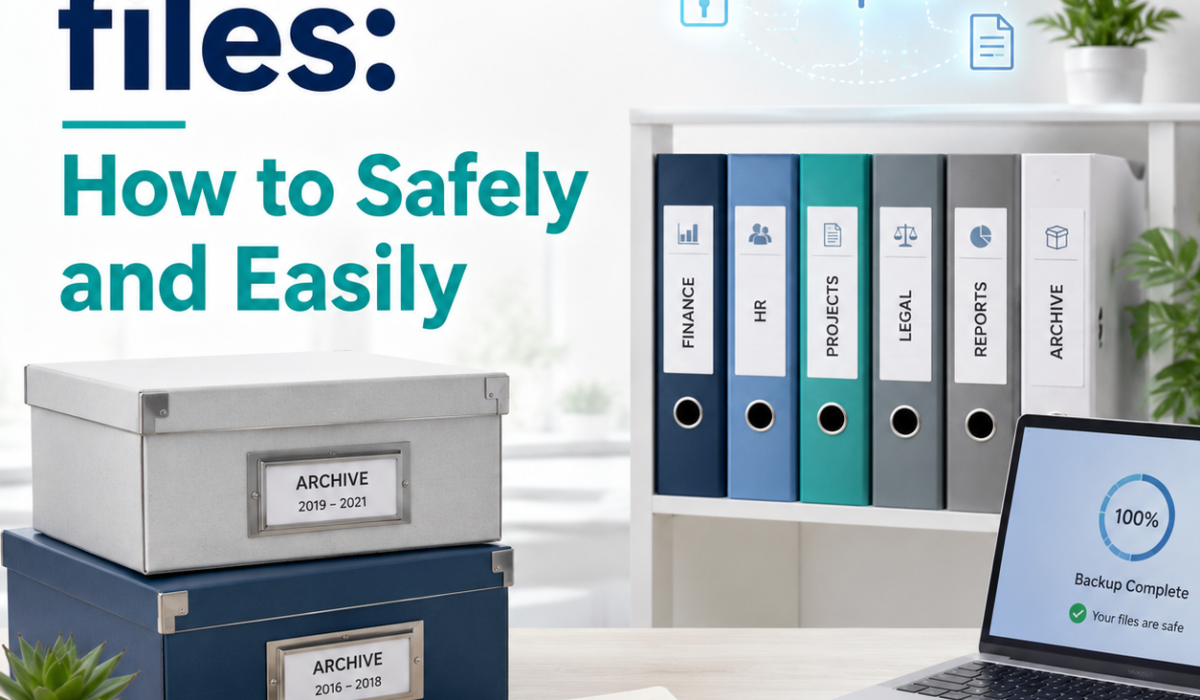
Archiving files is one of the simplest ways to organize digital information, save storage space, and protect important data for the long term. Whether you want to store old work documents, family photos, business records, or project files, knowing how to archive files safely and easily can help you avoid accidental loss, corruption, or security risks.
The basic idea is straightforward: move files you do not need to access regularly into a secure, organized storage format or location. Done properly, archiving keeps your active folders clean while making sure your files are still available when you need them. If you want a practical refresher on related digital filing habits, you can also review our guide to DiabetesMine Joins Healthline: What It Means for Readers.
This guide explains what archiving means, when to use it, how to protect stored files, and which methods work best for different situations. It also includes practical steps you can follow on a computer, mobile device, or cloud platform.
- What Does It Mean to Archive Files?
- Why Archiving Files Matters
- The Safest Ways to Archive Files
- Step-by-Step: How to Archive Files Safely and Easily
- How to Archive Files on Different Devices
- Common Mistakes to Avoid
- Best Practices for Long-Term File Archiving
- Frequently Asked Questions About Archiving Files
- Final Thoughts
What Does It Mean to Archive Files?
Archiving files means storing them in a way that keeps them accessible but separate from your everyday working files. This can involve:
- Moving files to a dedicated archive folder
- Compressing files into ZIP or similar archive formats
- Backing up files to external drives or cloud storage
- Using long-term storage systems for old data
Many people confuse archiving with deleting. They are not the same. Deleting removes files permanently or sends them to the trash. Archiving preserves them for future use. In other words, when you archive files, you are choosing storage and organization rather than removal.
In everyday use, people often archive files that are complete, old, or rarely needed. That may include project documents, tax records, family photos, archived emails, or older versions of important work. The goal is to keep those files available without letting them clutter active folders.
Why Archiving Files Matters
Archiving is useful for several reasons:
- Freeing up space on your computer or phone
- Improving organization by separating old and current files
- Reducing clutter in shared workspaces
- Protecting important records for legal, personal, or business needs
- Making backups easier by grouping less-used files together
For businesses, archiving also helps with compliance, audit readiness, and records management. For personal users, it helps protect memories and important documents without filling up active storage. The right archive files strategy can make a surprisingly big difference in how smoothly your devices and workflows run.
Archiving also helps with version control. Instead of keeping every draft in your main working folder, you can move older versions into an organized archive. That makes it easier to find the current file while still preserving the history behind it.
The Safest Ways to Archive Files
There are several ways to archive files safely. The best method depends on how often you need access, how sensitive the files are, and how much data you want to store.
1. Create a Dedicated Archive Folder
If you still want easy access, the simplest method is to create a separate archive folder on your device or server.
Best for:
- Old projects
- Reference documents
- Files you may need again soon
How to do it safely:
- Create clearly labeled folders, such as Archive_2024 or Old_Projects
- Organize files by date, category, or client name
- Keep the archive folder separate from active work files
- Avoid storing only one copy if the files are important
This method is easy and fast, but it does not protect against device failure unless you also back up the archive. If you use this method, it is wise to combine it with another storage location, especially for records you may need years later.
2. Compress Files into ZIP or Similar Formats
Compressing files into a ZIP archive is one of the most common ways to archive files. It reduces file size and bundles multiple files into one package.
Best for:
- Sending files by email
- Reducing storage usage
- Storing groups of related files together
How to do it safely:
- Use trusted file compression tools
- Name archive files clearly
- Keep a copy of the original files until you confirm the archive works
- Use passwords for sensitive content when supported
Compression is convenient, but it is not a complete backup strategy. If the archive becomes corrupted and you have no second copy, you may lose access to the files. To reduce that risk, verify the archive and test a few files after compression.
3. Store Files on an External Drive
External hard drives and SSDs are common archiving options for personal and professional use. They let you keep large amounts of data offline and separate from your main device.
Best for:
- Photos and videos
- Large document libraries
- Long-term offline storage
How to do it safely:
- Use a reliable drive from a reputable brand
- Eject the drive properly before disconnecting it
- Store it in a cool, dry place
- Keep at least one additional copy elsewhere
External drives are practical, but they can fail over time. That is why they should not be your only archive location. If you archive files on an external drive, treat the drive as one layer in a broader protection plan.
4. Use Cloud Storage for Archiving
Cloud storage is a safe and convenient option if you want files available from multiple devices. It also helps protect data from physical damage such as fire, theft, or hardware failure. For a primary reference on cloud security practices, see the CISA guidance on securing cloud services.
Best for:
- Documents you may need from anywhere
- Shared archives
- Offsite backups
How to do it safely:
- Choose a trusted cloud provider
- Enable two-factor authentication
- Use strong passwords
- Organize archived files into clear folders
- Check sharing settings to avoid accidental public access
Cloud storage is especially useful as part of a larger backup plan. Still, make sure you understand the provider’s storage limits, retention policies, and security settings. If you archive files in the cloud, review your account regularly so old folders do not become a security blind spot.
5. Keep Multiple Copies in Different Locations
The safest archiving strategy is often the simplest: maintain more than one copy of important files in different places.
A common approach is the 3-2-1 rule:
- Keep 3 copies of your data
- Store them on 2 different types of media
- Keep 1 copy offsite
For example:
- One copy on your computer
- One copy on an external drive
- One copy in cloud storage
This approach significantly reduces the risk of permanent data loss. It is especially valuable when you archive files that would be difficult or impossible to replace, such as legal records, business paperwork, or irreplaceable family photos.
Step-by-Step: How to Archive Files Safely and Easily
If you want a practical process, follow these steps.
Step 1: Identify Files to Archive
Start by deciding which files are no longer part of your daily workflow. These may include:
- Completed projects
- Old invoices
- Tax records
- Archived emails
- Photos from previous years
- Documentation you may need later
Do not archive files you still use frequently. Archive only what can be stored separately without affecting your current work. The more clearly you define what belongs in archive files, the easier it becomes to keep your main folders tidy.
Step 2: Sort and Organize the Files
Before moving anything, organize the files into logical groups.
You can sort by:
- Year
- Project name
- Client
- File type
- Department
- Event
A clean structure makes it much easier to find files later. Good organization also reduces the chance of duplication and confusion. If you archive files by year and category at the same time, you create a system that stays readable even when many folders are involved.
Step 3: Rename Files Clearly
File names should be simple and descriptive. Avoid vague names like final, new, or document1.
Better examples:
2024_Tax_Return.pdfClientA_Contract_2023.pdfFamily_Photos_Summer_2022.zip
Clear file names make archived content easier to search and manage. They also reduce mistakes when you move archive files between devices or share them with other people.
Step 4: Choose the Right Archive Method
Decide whether you want to:
- Move files to an archive folder
- Compress them into a ZIP file
- Store them on an external drive
- Upload them to cloud storage
For important files, combining methods is often the safest choice. For example, you might store archive files locally for quick access and also keep an offsite copy in the cloud.
Step 5: Back Up Before Archiving
Before making major changes, create a backup of the original files. This protects you if something goes wrong during compression, transfer, or storage.
A backup is especially important when:
- Archiving large folders
- Moving files between devices
- Compressing sensitive data
- Cleaning up an old system
When you archive files without a backup, you increase the risk of losing something important during the move. A backup gives you a recovery path if the process is interrupted or a file becomes unreadable.
Step 6: Verify That the Archive Works
Always test the archive after creating it. Open a few files to confirm they are readable. If you used compression, make sure the archive can be extracted without errors.
Verification helps catch problems early before the original files are deleted or overwritten. This is one of the most overlooked parts of archiving, yet it is also one of the most important. A file that cannot open is not useful no matter how neatly it is stored.
Step 7: Secure Sensitive Files
If your archived files contain personal, financial, legal, or business information, protect them properly.
Good security practices include:
- Password-protecting archives
- Encrypting drives or folders
- Limiting access to trusted users
- Using secure cloud storage with strong authentication
Security is especially important for archives because old files are often forgotten, which can make them easier to overlook during security checks. When you archive files that contain private information, encryption and access control should be part of the plan from the beginning.
Step 8: Keep an Index or Inventory
For larger archives, create a simple list of what is stored and where. This can be a spreadsheet or text file that includes:
- File names
- Date archived
- Storage location
- Category
- Notes
An index saves time when you need to find something later and reduces the risk of duplicated files. It also helps you remember why you kept certain archive files in the first place, which is useful when you review the archive months or years later.
How to Archive Files on Different Devices
The process can vary depending on your device, but the general principles stay the same.
On Windows
You can archive files by:
- Creating folders in File Explorer
- Right-clicking files and choosing compression options
- Copying files to an external drive
- Uploading them to cloud storage services
Windows also supports built-in ZIP file creation, which makes basic archiving easy. For users who work with lots of documents, the system can be a simple way to archive files without adding extra software.
On Mac
Mac users can:
- Create archive folders in Finder
- Right-click files and choose compression
- Use Time Machine or cloud storage for backups
- Store files on external drives formatted for Mac use
Mac systems make simple file compression easy, but it is still important to verify archives and maintain backups. A good habit is to test one or two files after you archive files on a Mac, especially when the files are important or irreplaceable.
On Mobile Devices
Phones and tablets are less ideal for long-term archiving, but you can still:
- Move files to cloud storage
- Create organized folders in file apps
- Back up photos and documents regularly
- Transfer files to a computer or external storage
For large or important archives, a computer or dedicated storage system is usually more reliable. Mobile devices are best used for quick sorting, sharing, or checking files rather than as the only archive location.
On Shared Team Drives
In workplaces, team drives and shared folders can be useful for archiving files that multiple people may need later. The key is to make access rules clear, so older records do not get mixed into active projects. Use consistent naming and permissions, and review who can edit archived content.
Common Mistakes to Avoid
Archiving files is easy, but a few mistakes can create problems later.
Deleting the Only Copy
Never assume archiving means the file is safe forever. If you delete the only copy, you may not be able to recover it.
Using Poor Folder Names
Unclear names make archives hard to search and manage.
Forgetting to Back Up
A single storage location is risky. Drives fail, accounts get locked, and files get corrupted.
Ignoring File Security
Sensitive files should not be stored in unsecured folders or shared accounts.
Skipping Verification
Always check that archived files open correctly after moving or compressing them.
Not Updating the Archive
Archives should be reviewed occasionally. Add new files, remove duplicates, and check that storage devices are still working. If you never revisit archive files, the system can become messy or outdated over time.
Mixing Active and Archived Content
Another common issue is mixing current work with older records. That makes it hard to know what is still in use. Keep active files and archive files in clearly separate locations so you can work faster and avoid confusion.
Best Practices for Long-Term File Archiving
If you want your archive to stay useful for years, follow these best practices:
- Use consistent folder structures
- Keep filenames descriptive and dated
- Store important files in at least two places
- Use encryption for sensitive content
- Check storage media regularly
- Update cloud passwords and security settings
- Review your archive once or twice a year
- Migrate files when older storage formats become outdated
Long-term archiving is not just about saving files. It is about making sure those files remain accessible, secure, and usable over time. When you archive files with maintenance in mind, you reduce the chances of surprises later.
It also helps to document your process. A short note explaining where you stored archive files, who can access them, and when they were last checked can save a lot of time in the future.
Frequently Asked Questions About Archiving Files
What is the safest way to archive files?
The safest way is to keep multiple copies in different locations. A combination of local storage, external backup, and cloud storage offers strong protection.
Is archiving the same as backing up?
No. Archiving stores files you do not use often. Backing up creates copies so you can recover data after loss or damage. A good archive is often also backed up.
Should I compress archived files?
Compression is useful if you want to save space or combine multiple files. However, compressed archives should still be backed up and tested for readability.
How long should I keep archived files?
That depends on the file type and why you need them. Some records must be kept for years, while others can be deleted when no longer needed. Legal and business requirements may apply.
Is cloud storage enough for archiving?
Cloud storage is convenient, but it should not always be your only archive. For important files, keep at least one additional copy offline or on another device.
Can archived files become corrupted?
Yes. Files can be damaged by bad storage devices, software errors, or incomplete transfers. That is why verification and multiple copies are important.
How often should I review archive files?
Review them at least once or twice a year. A quick check can confirm that archive files still open correctly, storage devices still work, and old folders are still organized the way you expect.
Final Thoughts
Archiving files safely and easily comes down to three things: organization, protection, and backup. Start by identifying the files you no longer use regularly, organize them clearly, and store them in a secure location such as an archive folder, external drive, or cloud service. For the best protection, keep multiple copies and verify that everything works after archiving.
A well-planned archive saves space, reduces clutter, and protects valuable information without making it hard to retrieve later. With the right method, you can keep your files safe and accessible for years. If you build your system now, archive files will be easier to manage every time you add new records, old projects, or personal documents.