

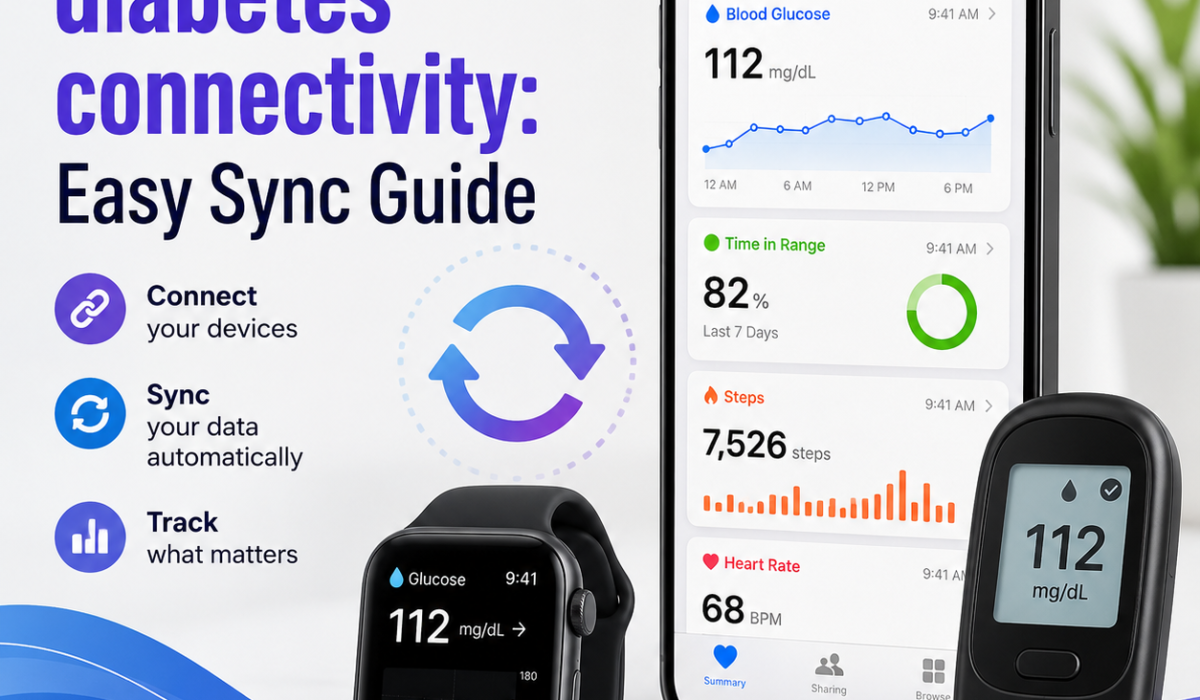
Apple Health diabetes connectivity is one of the most useful features for people managing blood sugar day to day. It lets glucose data, insulin information, meals, activity, sleep, and other health metrics flow into one place on your iPhone. For many users, the main goal is simple: keep diabetes data organized, easy to view, and available when making health decisions.
If you want to connect diabetes devices and apps to Apple Health, this guide explains how it works, what you need, and how to sync data smoothly. It also covers common problems and how to fix them.
What Apple Health diabetes connectivity means
Apple Health is Apple’s built-in health platform for iPhone. It acts as a central hub where health data from apps and connected devices can be stored and viewed. For many people, Apple Health diabetes connectivity is the easiest way to keep several different health tools working together.
When people talk about Apple Health diabetes connectivity, they usually mean connecting diabetes-related apps and devices so they can share data with the Health app. This may include:
- Continuous glucose monitor (CGM) readings
- Blood glucose measurements
- Insulin doses
- Carbohydrate intake
- Exercise and activity data
- Sleep and heart rate information
- Weight and other wellness metrics
The benefit is having a more complete picture of your diabetes management in one place. With Apple Health diabetes connectivity, the iPhone becomes a practical dashboard for reviewing patterns instead of switching between multiple apps. That can make it easier to notice changes that matter over time, especially when readings are combined with lifestyle data.
Apple Health works well because it can bring together information from different sources without forcing you to replace the app or device you already prefer. If your diabetes routine already includes a CGM, a food log, or a fitness tracker, Apple Health diabetes connectivity can help those tools feel more connected and easier to review in one screen.
Why syncing diabetes data with Apple Health is useful
Connecting diabetes apps to Apple Health can make diabetes tracking easier and more useful. Here are the main reasons people use it:
1. One central dashboard
Instead of checking multiple apps, you can review many health metrics in Apple Health. That makes Apple Health diabetes connectivity helpful for users who want a faster way to review daily information. It also reduces the chance that important details get overlooked because they are spread across different platforms.
2. Better trend tracking
Apple Health can help you see patterns over time, especially when glucose data is combined with sleep, exercise, and nutrition. Over days and weeks, those patterns can make diabetes management feel more understandable. Apple Health diabetes connectivity is especially useful when you want to compare readings from one part of the day with what happened earlier, such as exercise, meals, or rest.
3. Easier sharing with healthcare providers
Some users review Apple Health data before appointments to discuss trends and management strategies. If you use Apple Health diabetes connectivity consistently, you may have a clearer record of what happened between visits. That record can make conversations more productive because you have a broader picture than a single finger-stick or isolated reading.
4. More complete health insight
Diabetes is affected by many factors. Apple Health helps connect glucose readings with daily habits and health metrics, which can make it easier to spot what may be influencing blood sugar changes. For example, sleep changes, workout timing, or meal patterns may line up with highs or lows that are easier to understand once the data sits in one place.
5. Less manual logging
Depending on the app or device, data can sync automatically instead of being entered by hand. That convenience is often the biggest reason people look for Apple Health diabetes connectivity in the first place. Fewer manual steps usually means more consistent tracking, which can improve the quality of the overall record.
For readers who want to understand how connected health data continues to evolve, it can also help to explore broader diabetes technology coverage, such as CGM for Diabetes: 39 New CGMs for Diabetes Best Picks for 2026.
Another practical benefit is continuity. When you change phones, switch apps, or add a new tracker, Apple Health diabetes connectivity can help preserve a long-running health history. That makes it easier to compare today’s numbers with past patterns instead of rebuilding your record from scratch.
What you need before syncing
Before setting up Apple Health diabetes connectivity, make sure you have the right tools ready.
An iPhone
Apple Health is available on iPhone. You need an iPhone with the Health app installed.
A compatible diabetes app or device
Not every device can connect directly to Apple Health. Compatibility depends on the CGM, meter, pump, or app you use.
iOS permissions enabled
Your apps must be allowed to read and write Health data.
A stable internet connection
Some syncing features require internet access to update between apps and cloud services.
The latest app and iOS updates
Updates often improve compatibility and fix connection issues. If Apple Health diabetes connectivity stops working after an update, the app developer or device maker may also have released a new version that restores syncing.
It also helps to confirm that your device settings, such as Bluetooth and background app refresh, are enabled when your diabetes app depends on them. Many people assume the connection failed, when the real issue is simply that one background setting is off.
How Apple Health diabetes syncing works
Apple Health does not usually collect diabetes data on its own. Instead, it receives data from supported apps and devices. The process generally works like this:
- Your diabetes device or app collects the data.
- The app sends the data to Apple Health.
- Apple Health stores the data in the Health database.
- Other approved apps may read that data, if you allow it.
This means Apple Health is often a bridge between your diabetes tools, not the original source of the data. In most cases, the quality of Apple Health diabetes connectivity depends on how well the original app or device records and transfers information.
For more context on how diabetes data can fit into broader care routines, see Diabetes Care During the Pandemic: ADCES 2020 President on Support, Telehealth, and Flexibility.
In practical terms, the app that owns the data decides how quickly it syncs, which categories it shares, and whether it writes new readings in real time or in batches. That is why two devices can both support Apple Health diabetes connectivity but still behave differently once they are connected.
Apple Health can also act as a read-only or write-enabled destination depending on the permission you grant. If you let a diabetes app write glucose readings but not read other health details, the app can still send data into Apple Health without importing everything else from your iPhone.
How to connect a diabetes app to Apple Health
The exact steps may vary depending on the app, but the general setup is similar.
Step 1: Open the diabetes app
Launch the app that tracks your glucose or insulin data.
Step 2: Go to settings or integrations
Look for a menu called:
- Settings
- Connections
- Integrations
- Health
- Apple Health
Step 3: Enable Apple Health access
Turn on the option to connect to Apple Health or HealthKit.
Step 4: Allow data permissions
Your iPhone will usually ask what data the app can read or write. Choose the categories you want to sync.
Common permissions may include:
- Blood glucose
- Insulin delivery
- Carbohydrates
- Nutrition
- Exercise
- Weight
- Sleep
Step 5: Confirm the connection
After permission is granted, the app may start syncing automatically. In some cases, you may need to return to the app or refresh the data manually.
If the app asks for access to specific categories, start with the categories you actually want to review later. Good Apple Health diabetes connectivity works best when permissions are intentional rather than overextended. That keeps the Health app organized and makes it easier to understand where each type of data is coming from.
How to check Apple Health permissions
If data is not syncing correctly, permissions are often the first thing to check.
On iPhone:
- Open the Health app.
- Tap your profile picture in the top right.
- Tap Apps or Privacy depending on your iOS version.
- Select the diabetes app.
- Review what it can read and write.
Make sure the data types you want synced are turned on. If Apple Health diabetes connectivity was working before and suddenly stops, a permission change is one of the most common reasons.
It is also worth checking whether a second app is writing the same type of health data. When multiple apps send similar records, Apple Health may show one source more prominently than another, which can make it look like syncing stopped even when the data is still arriving.
How to view diabetes data in Apple Health
Once syncing is active, you can view your data inside the Health app.
To find blood glucose data:
- Open the Health app.
- Tap Browse.
- Search or select Blood Glucose.
From there, you can review:
- Daily readings
- Weekly and monthly trends
- Recent measurements
- Data sources
If your app syncs insulin or nutrition data, those categories may appear under their own sections in the Browse tab. Good Apple Health diabetes connectivity makes it easier to move between glucose, insulin, and lifestyle data without losing context.
When you review Apple Health regularly, you may notice that some categories are more complete than others. That is normal. Different apps support different levels of sharing, and some use Apple Health mainly for one-way export rather than full two-way syncing.
Which diabetes data can sync with Apple Health
The exact data depends on the app or device, but commonly supported categories include:
- Blood glucose
- Continuous glucose monitor data
- Insulin doses
- Carbohydrate intake
- Body weight
- Activity and workouts
- Sleep
- Heart rate
- Mindfulness or stress-related data
Some apps sync only a few categories, while others offer broader integration. When Apple Health diabetes connectivity is more complete, you are often able to look at more than glucose alone and see how lifestyle factors may line up with readings.
Not every category is equally useful for every person. For some users, blood glucose and insulin are the most important pieces. For others, activity and sleep are the biggest clues. Apple Health diabetes connectivity gives you the flexibility to decide which pieces matter most and which ones you want in the same view.
Common devices and apps that may support Apple Health
Many diabetes-related apps and devices can connect to Apple Health, but support changes over time. Always check your device documentation or app settings for the latest details.
Examples of tools that may offer Apple Health integration include:
- CGM companion apps
- Diabetes logging apps
- Insulin tracking apps
- Fitness and nutrition apps
- Smart scales and wellness apps
If you use a diabetes management platform, the app may also sync with Apple Health through a separate settings menu. If you are comparing connected diabetes tools, it may also help to read broader device roundups such as Diabetes Products: 5 Hot New You Need to See.
Some users also pair their health records with broader industry news and device coverage to see where integration is headed next. That can be especially helpful if you are deciding whether to stick with a current app or switch to one with better Apple Health diabetes connectivity.
Troubleshooting Apple Health diabetes connectivity
If your diabetes data is not appearing in Apple Health, use these common fixes.
1. Check permissions
Make sure the app has permission to read and write the correct data types.
2. Confirm the app is updated
Older app versions may stop syncing properly.
3. Update iOS
An outdated iPhone system can cause Health integration issues.
4. Restart your iPhone
A simple restart can refresh background syncing.
5. Reconnect the app
Turn Apple Health access off, then back on again in the diabetes app settings.
6. Check Bluetooth and device connection
If your device relies on Bluetooth, make sure it stays connected properly.
7. Look for data source conflicts
If multiple apps write the same data type, Apple Health may prioritize one source over another.
8. Reinstall the app if needed
If syncing still fails, reinstalling the app may reset the connection.
These steps solve many Apple Health diabetes connectivity issues without needing advanced technical help. If your device has its own support center or online help article, it may also explain whether the issue is known, temporary, or tied to a recent software update.
For many people, the fastest fix is simply to disconnect and reconnect permissions, then wait a few minutes and open the Health app again. Small timing delays can look like a failure when the data is still processing in the background.
Why blood glucose data may not appear immediately
Sometimes users expect data to show up instantly, but syncing can be delayed. This may happen because:
- The app syncs at intervals rather than in real time
- Bluetooth data transfer is delayed
- The device is still connecting in the background
- Permissions were changed recently
- Apple Health has not refreshed yet
If recent readings are missing, wait a little and then check again. If the problem continues, review the app’s sync settings. A short delay does not always mean Apple Health diabetes connectivity is broken.
In some cases, the reading appears in the source app first and only later reaches Apple Health. That gap can be confusing, but it is common and usually temporary. If the delay happens often, make a note of the time so you can spot a pattern and decide whether the issue is device-related or app-related.
Is Apple Health good for diabetes management?
Apple Health is helpful for organizing data, but it is not a diabetes treatment tool by itself. It works best as a support system that helps you review trends and combine information from multiple sources.
For many users, Apple Health is valuable because it:
- Simplifies tracking
- Improves visibility into patterns
- Reduces app switching
- Helps create a more complete health record
However, it should not replace medical guidance, glucose monitoring instructions, or your care plan from a healthcare professional. Apple Health diabetes connectivity is most useful when it supports, rather than replaces, your regular diabetes routine.
It is also useful for people who like to spot patterns without opening several different apps. A single dashboard can make daily management feel less fragmented, and that alone can improve consistency. When Apple Health diabetes connectivity is working well, the Health app becomes a practical summary of your routine rather than another place you have to manually update.
Best practices for smoother syncing
To get the best results from Apple Health diabetes connectivity, follow these tips:
- Keep your iPhone and apps updated
- Allow only the permissions you need
- Avoid unnecessary duplicate data sources
- Check sync settings after changing phones or devices
- Review Apple Health data regularly
- Make sure Bluetooth and background refresh are enabled when needed
These small steps can prevent many sync issues. They also make Apple Health diabetes connectivity more dependable over time, especially if you use multiple apps that share the same health categories.
It is smart to build a quick routine around your sync check. For example, after updating your phone or switching to a new device, open the Health app, confirm the categories you care about, and make sure the newest readings are visible. That habit can save time later and help you trust the data more consistently.
Privacy and data sharing considerations
Apple Health is designed with privacy in mind, but it is still important to understand how your data is shared.
Apple Health data access is permission-based
Apps can only access the health categories you approve.
Review third-party app policies
Each diabetes app may store or process your data differently.
Be selective with sharing
Only connect apps you trust and only grant permissions you actually need.
Understand device and cloud syncing
Some data may also be stored by the app’s own service, not just on your iPhone.
If privacy matters to you, review both Apple’s settings and the app’s privacy policy. Apple also explains how health data permissions work in its official support information at Apple’s Health data sharing guide.
Before connecting a new app, think about whether it needs access to your full health profile or only a narrow set of readings. Limiting access can keep Apple Health diabetes connectivity more privacy-friendly while still giving you the information you need.
When to ask for help
If you cannot get Apple Health diabetes connectivity working after checking the basics, contact:
- The diabetes app support team
- The device manufacturer
- Apple Support
- Your healthcare provider, if the issue affects your record keeping
Support teams can often confirm whether your specific device supports Apple Health and whether there is a known syncing issue. If your readings are important for daily decisions, it is worth getting help sooner rather than later.
You should also ask for help if a device update changed the way your data appears, if a new phone stopped the sync, or if a reading source suddenly disappears from the Health app. Those problems are often technical rather than medical, but they still matter because they can affect the record you rely on.
Frequently asked questions
Does Apple Health track diabetes automatically?
No. Apple Health usually receives diabetes data from compatible apps or devices. It does not monitor glucose on its own.
Can Apple Health show continuous glucose monitor data?
Yes, if your CGM app supports Apple Health integration and you enable the correct permissions.
Can I sync insulin doses to Apple Health?
Some diabetes apps can write insulin data to Apple Health, depending on the app and device.
Why is my glucose data missing in Apple Health?
Common causes include disabled permissions, outdated apps, Bluetooth issues, or sync delays.
Is Apple Health free to use?
Yes. The Health app comes built into the iPhone at no extra cost.
Conclusion
Apple Health diabetes connectivity gives people a simple way to bring glucose data, insulin information, and related health metrics into one place. The setup is usually straightforward: connect your diabetes app or device, allow the right permissions, and check that syncing is active. If data does not appear right away, most issues can be fixed by reviewing permissions, updating apps, and reconnecting the device.
For anyone managing diabetes with an iPhone, Apple Health can be a powerful tool for organizing information, spotting trends, and supporting more informed daily decisions. With the right setup, Apple Health diabetes connectivity can turn scattered readings into a clearer picture of day-to-day management.
Over time, the biggest benefit is often consistency. When your readings, activity, and related health details stay in one place, it becomes easier to review patterns, prepare for appointments, and keep your diabetes routine on track.